
XEI.ItemGenerator – User Manual
Installation, license, menus and authorizations are described in the installation manual.
1. What the add-on does
XEI.ItemGenerator creates items in Item Master Data whose codes are composed by choosing values level by level: product type, size, material... You define the tree of choices once. Then, instead of inventing codes and descriptions by hand, you compose them in a window: the add-on calculates code, description, price, weight, dimensions, group, properties and bill of materials, and creates the items by copying a template item.
- Consistent codes: the code is "meaningful" (e.g.
PE090= 90 cm wall unit) plus a sequential number that distinguishes the variants (color, handle...). - No duplicates: the same composition always generates the same item; if it already exists, the add-on finds it.
- Many items at once: several sizes and several options give all the combinations.
- Complete items: descriptions (also in a foreign language), master data, price list price and bill of materials come from the configuration.
- From the document: in sales quotations and sales orders you configure the item of the row without leaving the document.
Highlights
- Generation in a resizable window on top of SAP: code tree and variant tree with check boxes (also on different branches), search, list of items with status, price and result; SAP remains usable. Same look as the SAP client, messages in the same style, texts editable with a right-click.
- Price, weight, dimensions, groups, properties, foreign name and bill of materials composed from values and options.
- Description formula with codes, options and optional parts.
- Configure Item from sales quotations and sales orders; generate similar items from a generated item.
- Configuration check that opens the master data record to correct; Excel import/export; duplication.
- SAP authorizations by function; texts in five languages.
2. Concepts: bases, values, variants and structures
An item code is made of neutral code + suffix:
- the neutral code is the meaningful part: the sequence of the codes of the values chosen level by level. Each level is a base (e.g. Cabinet type, Width) with a fixed length and its own values; each value leads to the next sub-level or is the last one;
- the suffix is a sequential number of N digits (settings) that distinguishes items with the same neutral code and different variants; with 0 digits the code is the neutral code;
- a variant (e.g. Color) has options (e.g. white, oak). The variants to ask for a value are grouped in a variant structure linked to the value.
The whole manual uses this example, contained in the file esempio-cucine.xlsx, to be imported with Excel Import / Export:
Tipo mobile cucina (CU, 2 characters)         structure CUSC: Colore
├── BA Mobile base     → Larghezza
└── PE Mobile pensile  → Larghezza
Larghezza (CL, 3 characters)                  structure CUSM: Colore anta + Maniglia, inherit variants
├── 060 Larghezza 60 cm
└── 090 Larghezza 90 cm
Colore (CUCOL)     BI Bianco · RO Rovere
Maniglia (CUMAN)   AL Maniglia alluminio · NE Maniglia nera
The 90 cm wall unit with aluminum handle has the neutral code PE090; generating white and oak
together, with a 3-digit suffix, the white one (BI comes before RO) becomes PE090001 and the oak
one PE090002.
The composition (values of each level + chosen options) identifies the item: when the same composition is generated again, the add-on finds the existing item instead of creating another one.
3. Settings
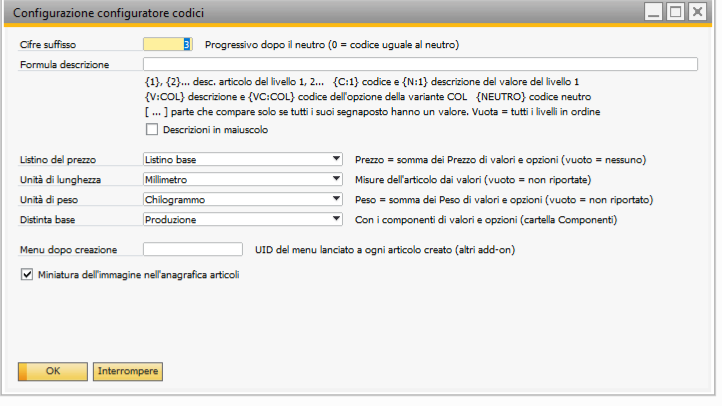
The Settings window.
| Option | Effect | Default |
|---|---|---|
| Suffix digits | sequential number after the neutral code (0-10); 0 = code equal to the neutral code (only one item per neutral code) | 0 |
| Description formula | how the description is composed (chapter 8); empty = descriptions of the levels in order | empty |
| Descriptions in upper case | description, extended description and foreign name in upper case | No |
| Price list | price list where the item price is written (sum of the prices of values and options), in local currency | none |
| Length unit | unit of the dimensions (length, width, height) of values and items; empty = dimensions not set | none |
| Weight unit | unit of the weight of values and options; empty = weight not set | none |
| Bill of Materials | type of bill of materials created with the components: None, Production, Sales, Assembly, Template | Production |
| Menu after creation | menu to run for each item created (integration with other add-ons, chapter 14) | empty |
| Thumbnail | item picture in the header of Item Master Data (chapter 14) | No |
| Add to list clears the list first | in generation, Add to list replaces the list with the last selection; without this option the items accumulate and are removed with Clear list (chapter 9) | Yes |
| Window theme | colors of the add-on windows (generation), like the two themes of the SAP client: SAP SQL (dark header, gold buttons) or SAP HANA (blue header, light blue buttons). It applies to all XEI add-ons of the company; open windows change immediately | according to the database |
The options apply to the whole company; if the generation window is already open, it uses them when it is opened again.
4. Variants and variant structures
Variant and option definition
A variant has a code, a description and its options (Options tab). In the header, as in the bases, you can enter a user table and an item user field: when the item is created, the chosen option is added to the table (if it is not there) and its code is written in the item user field (chapter 6).
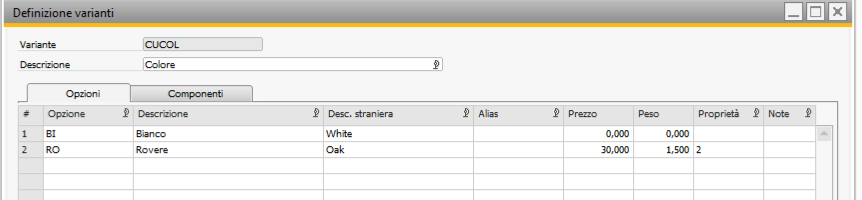
The Color variant with its options.
| Column | Use |
|---|---|
| Option, Description | code and description of the option; the description is the text of the option in the item description |
| Foreign desc. | text of the option in the foreign name (empty = the Italian one) |
| Alias | free text |
| Price | contribution to the item price |
| Weight | contribution to the item weight |
| Properties | item properties to activate: numbers from 1 to 64 separated by commas (e.g. 2, 12) |
| Active | inactive options do not appear in generation |
In the Components tab you enter the bill of materials components brought by the options (chapter 7).
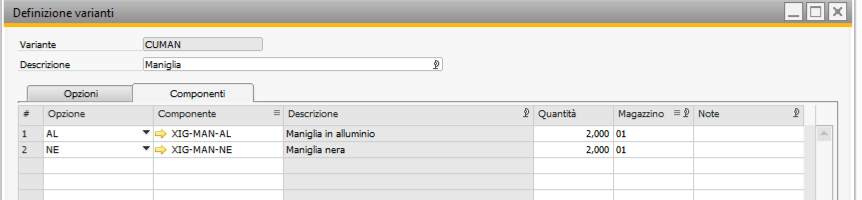
Components of the handle options: two handles from warehouse 01.
Variant structures
A structure groups the variants to ask for a base value, with the position (order in generation; all different) and the description position (order of the chosen option at the end of the description; 0 = not added at the end). The row description, if entered, replaces the description of the variant (e.g. "Door color").
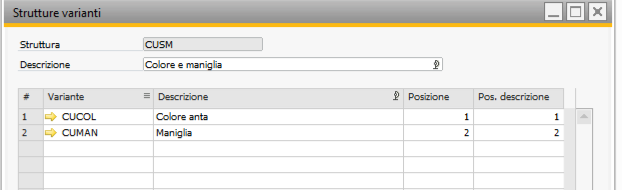
The CUSM structure: door color and handle.
You cannot delete a variant used by a structure, or a structure used by a base.
5. Bases and values
Base header: code, description, code length (all values have this length), classification, user table and item user field. The Values tab has one row per value:
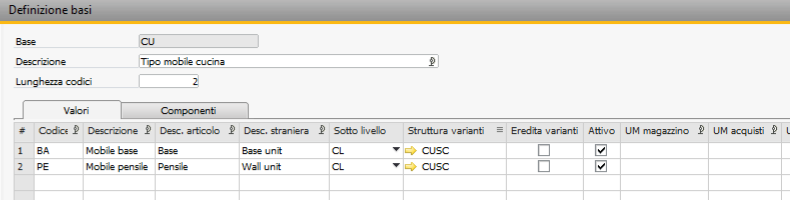
The CU base with its values: descriptions, sub-level, variant structure.

The next columns: data for the item (group, properties, price, dimensions, weight).
There are many columns: when you maximize the window the table widens and all of them are visible.
| Column | Use |
|---|---|
| Code, Description | code of the value (exactly as long as set in the base) and description |
| Item desc. | text of the value in the item description |
| Foreign desc. | text of the value in the foreign name of the item (empty = the Italian one) |
| Sub-level | base of the next level (choose-from list; the arrow opens the base); empty = last level |
| Variant structure | variants to ask for the value (the arrow opens the structure) |
| Inherit variants | variants already present on a previous level start with the options chosen up there, proposed: they can be changed on the value (right-click in generation to go back to the proposed ones). As long as they follow the proposal, the option counts only once |
| Force inheritance | with Inherit variants: the choice of the previous level applies and cannot be changed on the value (the variant does not appear on its level) |
| Active | inactive values do not appear in generation |
| Inventory UoM / Purchasing UoM / Sales UoM | text units of measure of the item |
| Item group, UoM group | item group and UoM group of the item |
| Properties | item properties to activate (1-64) |
| Price, Weight | contributions to item price and weight |
| Length, Width, Height | item dimensions |
Chapter 6 explains how these data are used for the item. In the Components tab you enter the bill of materials components brought by the values:
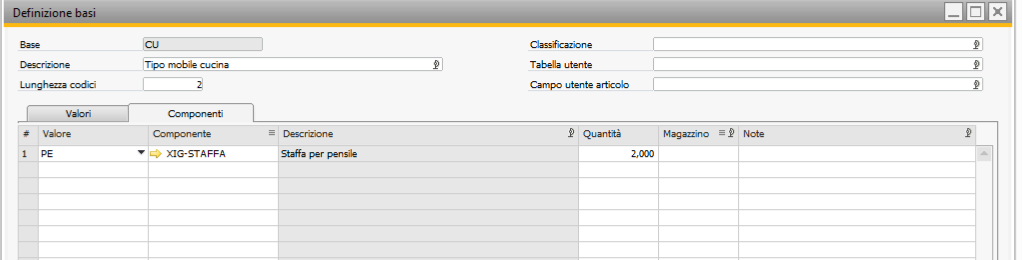
The wall unit brings two brackets.
- User table (a user table with no object, for example a table of colors): when the item is created, the chosen value is added to it (code and description), if it is not there.
- Item user field (for example a Color field in Item Master Data): when the item is created, the code of the chosen value is written in it.
- First-level bases are those that are not the sub-level of any value.
When saving, the add-on checks lengths, repeated codes, sub-level different from the base itself, properties and components; the reason for an error appears in the status bar and the record is not saved. You cannot delete a base used by generated items or that is the sub-level of another base.
Duplicate (in bases, variants and structures): with a record open, it prepares a new record with the same data and all the rows; you enter the new code and press Add. Useful for similar bases (e.g. another range of sizes).
6. Data of the created item
Each item field comes from the values of the composition and from the chosen options, with two rules:
- the last level that sets it applies: a later level overrides the previous levels; an empty or zero field does not clear the one of a previous level;
- it is added up: all values and chosen options contribute. An inherited option counts only once, on the level where it was chosen, as long as the level that inherits it follows it; an own choice on that level counts there too (even if it is the same option).
| Item field | From | Rule |
|---|---|---|
| Code | codes of the values | neutral code + suffix (max 50 characters) |
| Description, extended description | item desc. of the values, descriptions of the options | formula (chapter 8); the description is truncated to 200 characters, the extended one is complete in the Extended description field |
| Foreign name | foreign desc. of values and options | same formula; empty if none has a foreign desc. |
| Remarks | composition | tree with the chosen values and options |
| Item group | values | last level; none = the one of the template item |
| UoM group | values | last level; with a group, the text UoMs are not used |
| Inventory / Purchasing / Sales UoM | values | last level, each one separately |
| Properties | values and options | added up: all are activated |
| Length, width, height | values | last level, each one separately; in purchasing and sales data |
| Weight | values and options | added up; in purchasing and sales data |
| Price | price of values and options | added up; in the price list of the settings |
| Bill of Materials | components of values and options | added up (chapter 7) |
Example: 90 cm wall unit in oak with aluminum handle (the color is chosen on level 1 and inherited by 090).
| Level | Choice | Price | Weight | Dimensions | Group | Properties |
|---|---|---|---|---|---|---|
| 1 Type | PE Wall unit | 100 | 10 | width 350, height 720 | 101 | 1, 3 |
| 1 Color | RO Oak | 30 | 1.5 | 2 | ||
| 2 Width | 090 W90 | 40 | 3 | length 900 | 5 | |
| 2 Handle | AL Aluminum | 5 | 0.2 | |||
| Item PE090002 | 175 | 14.7 | 900 × 350 × 720 | 101 | 1, 2, 3, 5 |
Everything else (accounts, planning data, vendor, warehouses...) comes from the template item chosen in generation: the new items copy its data, without stock, prices, barcodes, bill of materials, last prices and foreign name.

The created item: description, foreign name, group, price in the price list.
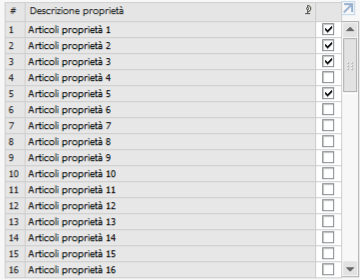
Properties activated by values and options.
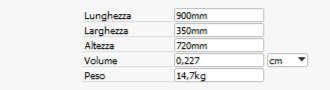
Dimensions and weight in the sales data.
7. Bill of Materials
Each base value and each variant option can have components (Components tab of the two master data windows): the component item, the quantity per unit of the generated item and, optionally, the issue warehouse (empty = the default warehouse of the component). When the item is created, the add-on creates its bill of materials with the components of the whole composition:
- for each level, from the first to the last, the components of the chosen value and then those of the chosen options;
- inherited options do not bring their components again;
- the same item with the same warehouse becomes a single row with the quantities added up;
- the bill of materials has quantity 1 and the type set in the settings (production, sales, assembly, template); with None, or if the composition has no components, no bill of materials is created;
- item and bill of materials are saved together: if the bill of materials cannot be created, the item is not kept either and the reason is in the Result column of the generation.
SAP accepts each type of bill of materials only on suitable items (for example the production bill of materials on an inventory item, sales and assembly bills of materials on a sales item that is not an inventory item): the template item must have the right characteristics for the type chosen in the settings.
In the example the wall unit brings 2 brackets, the oak option 1 door, the aluminum handle 2 handles from warehouse 01. The 90 cm wall unit in oak with aluminum handle has this bill of materials:
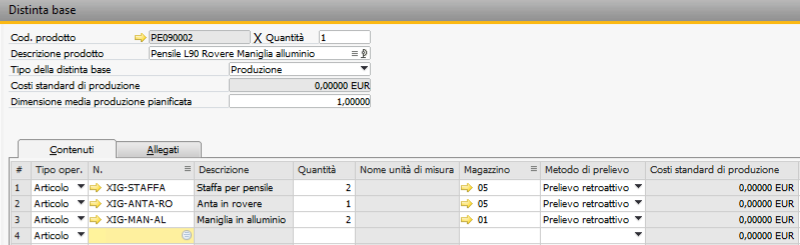
The bill of materials created with the item.
In generation, the Components column of the list shows how many rows the bill of materials will have; after creation the result says "With bill of materials (n components)". The configuration check reports components that do not exist, with zero quantity or with warehouses that do not exist.
8. Description formula
The formula (settings) decides how description, extended description and foreign name are composed.
| Placeholder | Becomes |
|---|---|
{1}, {2}... |
the item desc. of the value chosen on level 1, 2... |
{C:1}, {N:1} |
the code and the description of the value chosen on level 1 |
{V:CUCOL} |
the description of the option chosen for the CUCOL variant |
{VC:CUCOL} |
the code of the option chosen for the CUCOL variant |
{NEUTRO} |
the neutral code |
[ ... ] |
optional part: it appears only if all the placeholders it contains have a value |
- Empty formula: the item desc. of the levels in order.
- At the end come the descriptions of the options with a description position greater than zero,
in that order, if the formula does not already mention their variant with
{V:...}or{VC:...}. - A placeholder with no value becomes empty; inside
[ ]it removes the whole part, separators included. - Double spaces are removed; with Descriptions in upper case everything is in upper case; placeholders are not case-sensitive.
- Foreign name: the same formula with the foreign descriptions (the Italian ones where they are missing); empty if no value and no option has a foreign desc.
- An unknown placeholder stays in the text, so you can see it; the configuration check reports it, as well as square brackets that are not closed or nested.
Examples with the 60 cm wall unit in oak with aluminum handle:
| Formula | Description |
|---|---|
| (empty) | Pensile L60 Rovere Maniglia alluminio |
{1} {V:CUCOL} {2} |
Pensile Rovere L60 Maniglia alluminio |
{N:1} {C:2} - {NEUTRO} |
Mobile pensile 060 - PE060 Rovere Maniglia alluminio |
{1} {2}[ con {V:CUMAN}] |
Pensile L60 con Maniglia alluminio Rovere; without handle: Pensile L60 Rovere |
| (empty), upper case | PENSILE L60 ROVERE MANIGLIA ALLUMINIO |
| (empty), foreign name | Wall unit L60 Oak Maniglia alluminio |
9. Item generation
Generation is a separate window, on top of SAP: you can maximize, minimize and resize it like any Windows window (the panels adapt; the dividers between the panels can be dragged). Position, size, dividers and column widths are remembered per user; the first time it opens full screen. While it is open SAP remains usable, also while items are being created. The colors follow the Window theme of the settings (chapter 3): the header shows the code format, and below it a panel says where the generation was opened from (document row, similar item) or what is wrong.
Long operations (expanding many levels, searching, checking a whole branch, adding or creating many items) show what they are doing at the bottom of the window (message with progress, bar) and can be stopped with Stop; meanwhile the commands are locked and the window stays responsive. Results are shown at the bottom, with an icon (green, orange, red). An unexpected error is shown in a message and the window remains usable.
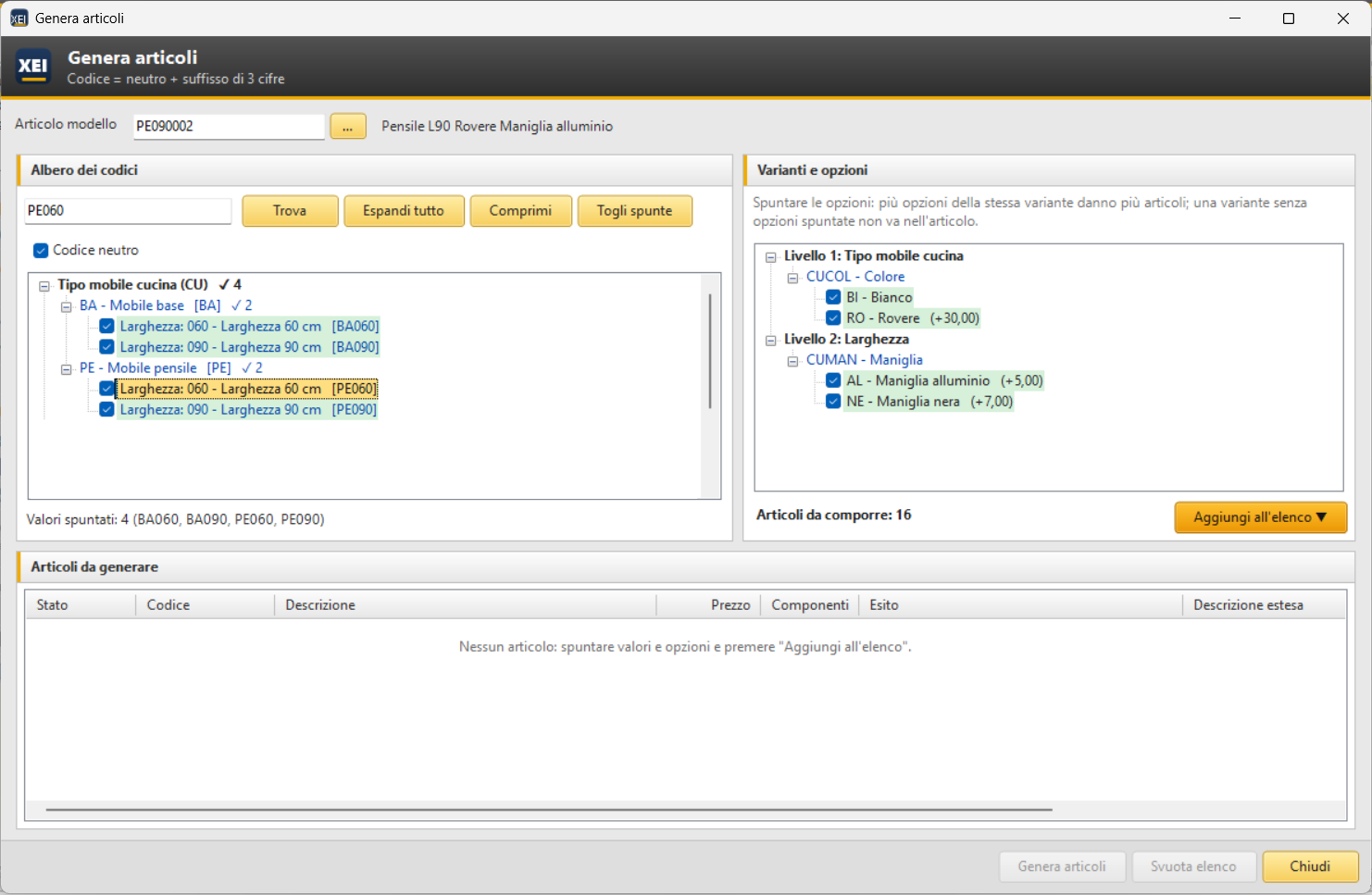
Widths 060 and 090 of the base unit and of the wall unit checked (on two branches), white and oak color, aluminum and black handle: 16 items to compose.
- Template item (at the top, optional, remembered from one session to the next): the new items copy its data (chapter 6). The ... button (or F2) searches for the item by code or description; next to the code you see the description, or Item not found in Item Master Data. Without a template item, items are created with the configuration data only.
- Code tree (on the left): the first-level bases with their values; the + sign expands the sub-level of a value. Values with variants are shown in blue; hovering the mouse over a value shows its item description, variants and sub-level. You check the last-level values (the only ones with a check box), also more than one and also on different branches: next to the branches you see how many values are checked below them (✓ 2), and below the tree their neutral codes.
- Find: a complete neutral code (e.g.
PE090) goes directly to its value; otherwise it goes to the next value that has the text in its code or description (Enter for the next one, Ctrl+F to go back to the search). The search also covers levels that are not expanded yet. - Expand all, Collapse, Uncheck all; Neutral code shows the neutral code next to each value.
- Right-click on a branch: Check the last-level values below, Uncheck below, Expand below. Double-click or space bar on a last-level value: checks or unchecks it.
- Variants and options (on the right): the structure of the value selected in the tree (click or arrow keys), with its variants in the order of the structure, the options to check and their contribution to the price; the title says which value it refers to. An inherited variant says so next to its name: proposed by level 1, Type: editable (it follows the choice made above), own choice, different from level 1 (right-click Back to the proposed options), same as level 1: forced inheritance (chapter 5). The same variant on the same level is chosen only once for all the checked values. The check box All variants of the checked values, by level instead shows all the variants of the checked values grouped by level, with only for 060 if a variant concerns only some values. Several options of the same variant give several items; a variant with no checked options is not part of the composition. Right-click: Check all options / Uncheck all options. Below you see how many items will be composed.
- Add to list: composes all the combinations in the list at the bottom, with code, description, price, number of bill of materials components and status. By default (option Add to list clears the list first, chapter 3) the list is cleared and contains only the last selection; with the option turned off the items accumulate and those already in the list are not repeated. The checks on values and options remain (they are removed with Uncheck all): you change an option or a value and add again.
- Generate Items (n): creates the checked items of the list (n on the button), one at a time, with the result row by row and the progress bar. Stop stops the creation after the current item. At the end, at the bottom of the window, there is the summary: Items created: n., then, only if there are any, those that another user had created in the meantime and those with errors; the list moves to the first item created.
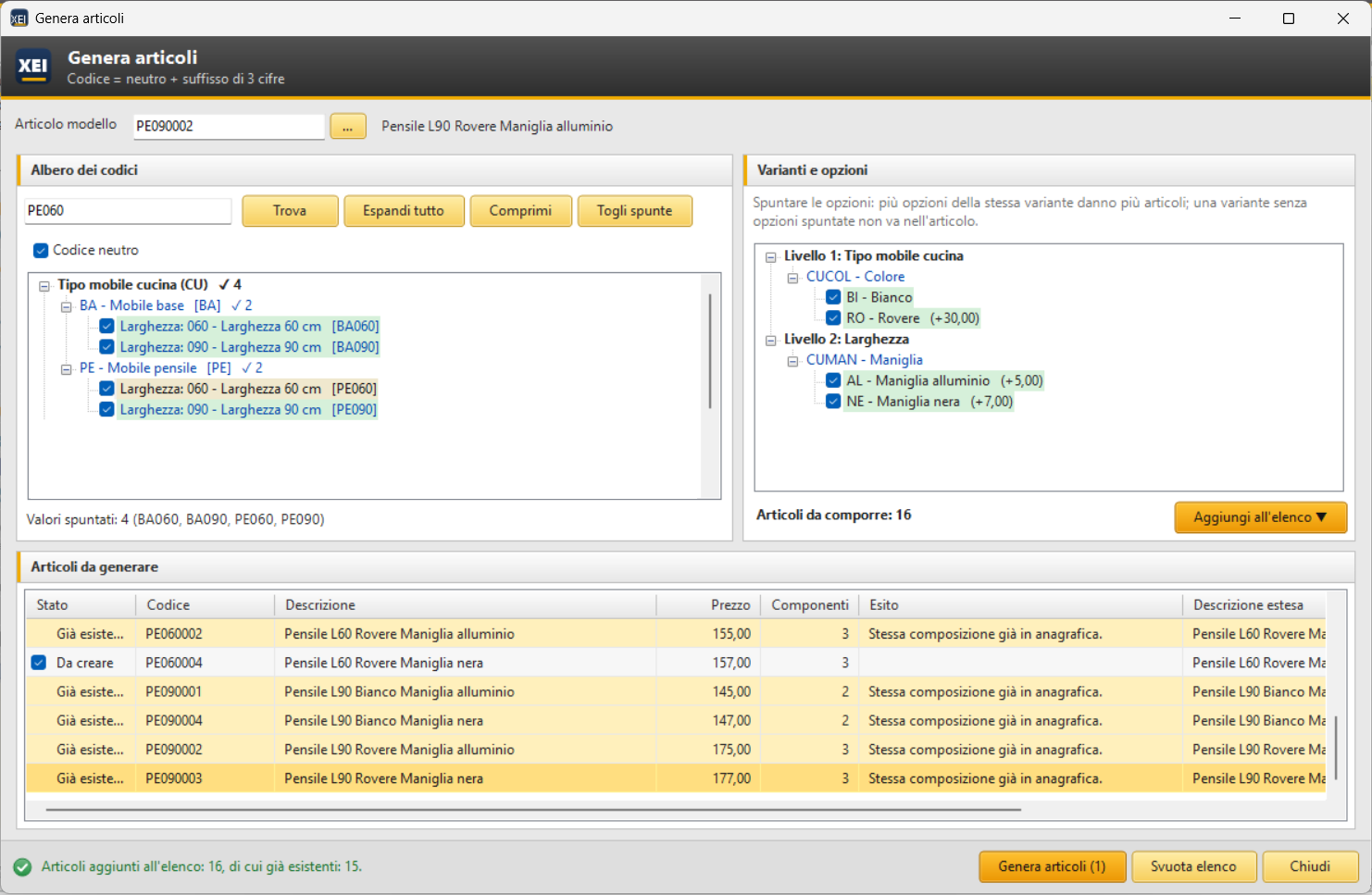
The 16 composed items (end of the list): 15 already in Item Master Data (in yellow) and one to create, PE060004, with price and number of components.
| Status | Meaning |
|---|---|
| To create | code = neutral code + first free suffix (neither in Item Master Data nor already in the list) |
| Already exists | the same composition is already in Item Master Data: the code is that of the existing item (yellow) |
| Created | item created (green); the result says whether it has a bill of materials |
| Error | the reason is in the Result column (red): code already used, suffixes used up, code too long, SAP error. You can correct it and generate again |
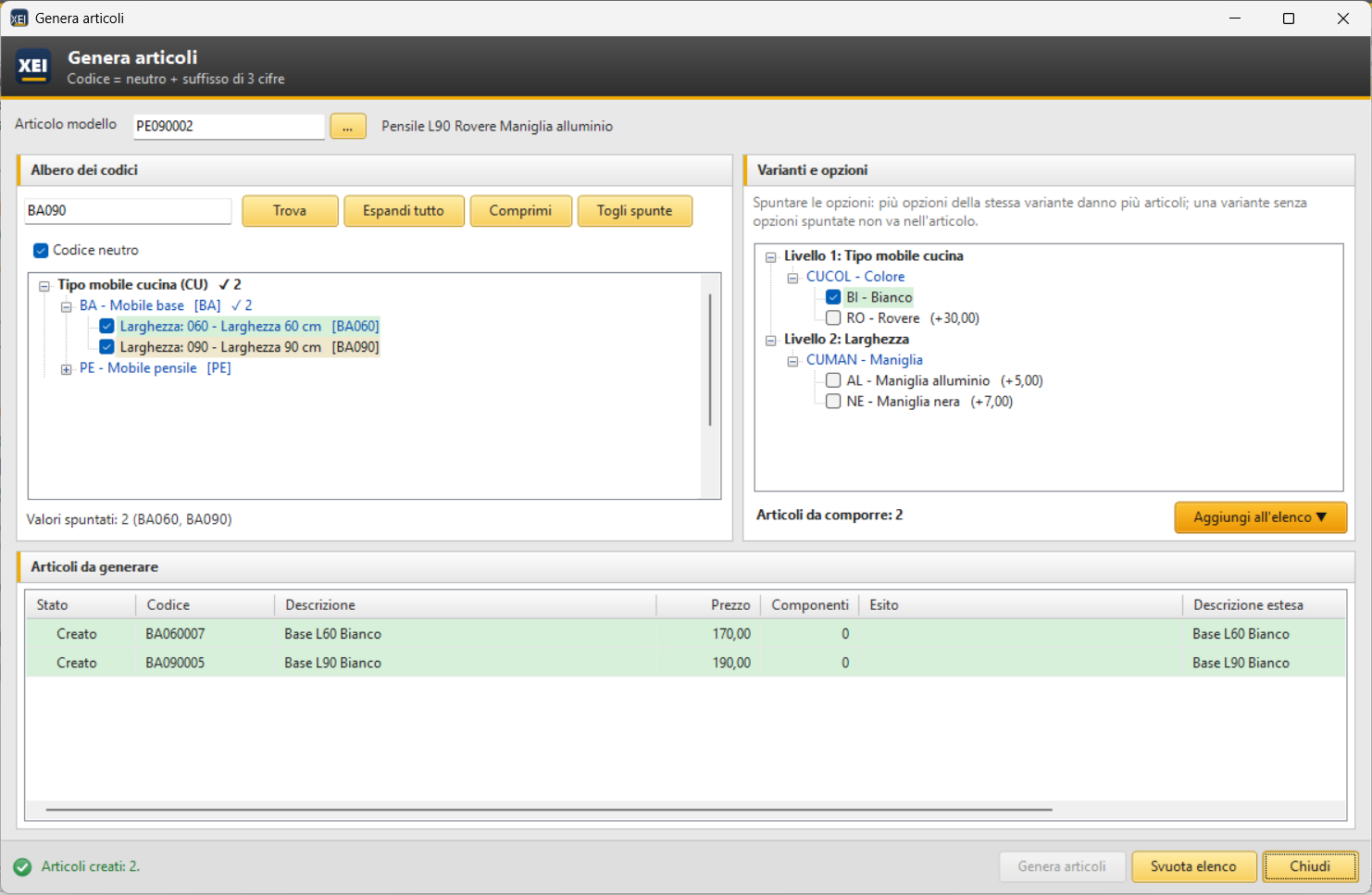
Generation result: the 60 and 90 cm base units in white created (in green) and the summary at the bottom; without components they have no bill of materials (with components the result says "With bill of materials").
In the list, the check box (only on items to create or in error) decides which items to create. Double-click (or Enter) on a created or already existing item opens it in SAP Item Master Data (the generation window is minimized and can be restored from the taskbar). An item still to be created opens nothing: at the bottom of the window you read Item ... is not in Item Master Data yet; the same happens if the item has been deleted in SAP in the meantime. Right-click: Open in Item Master Data, Copy code, Remove from list, Check all, Uncheck all; Del removes the selected rows, Ctrl+C copies their codes. Clear list starts from scratch. If the list contains items not yet created, closing or clearing asks for confirmation.
Window messages and texts
Questions and messages of the generation window (for example Create 2 items in Item Master Data?) have the same look as the window: Enter chooses the highlighted button, Esc answers No. Users with the Modifica testi add-on XEI (edit XEI add-on texts) authorization can change the texts of the window as in SAP windows: right-click on a label, a button, a panel title, a column header or the text of a message, then Modifica testo... (Edit text); Testi di questa finestra... (Texts of this window) (also at the bottom of the tree and list menus) lists them all. The custom text applies to all users in the current language and is visible immediately.
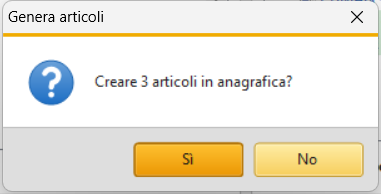
The question before creation, in the window style.
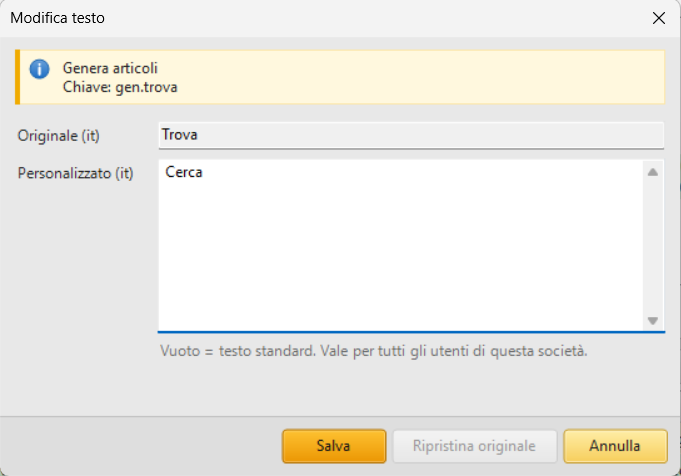
Modifica testo (Edit text) from a right-click on the Find button: original text and custom text.
Before creating each item, the add-on checks again that nobody has created the same composition or used the code in the meantime. Each item is created in a single operation (item, bill of materials, user tables, composition): an error does not leave incomplete data.
10. Items from sales quotations and sales orders
In sales quotations and sales orders, right-click on a row › Configure Item...:
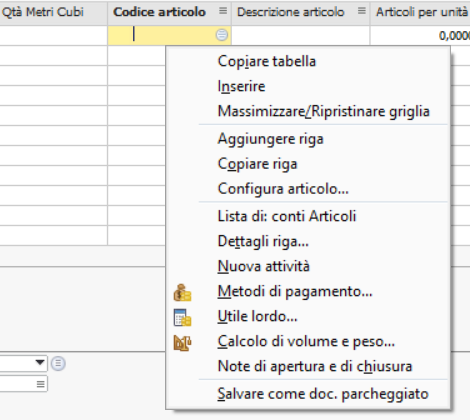
Configure Item from the order row.
The generation window opens for that row (the window title and the panel at the top say so). You compose and create the item as usual; then Use in row puts the item selected in the list (created or already existing; if the list has only one item there is no need to select it) in the document row, closes the generation window and brings the document back to the front. SAP fills in the row as if the code had been typed by hand: description, price from the customer's price list, warehouse.
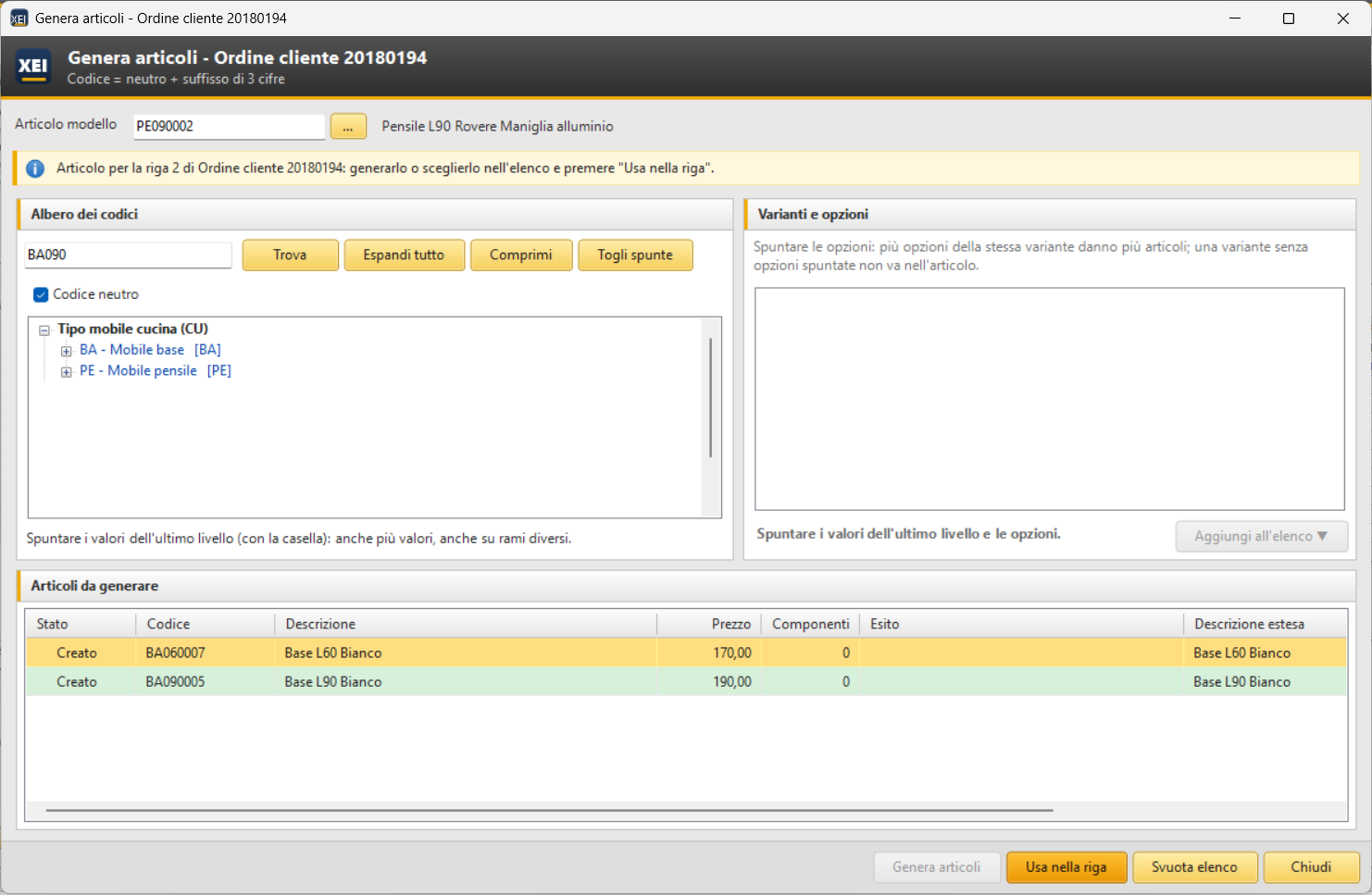
Generation opened from row 2 of the order: the item just created is selected, and "Use in row".
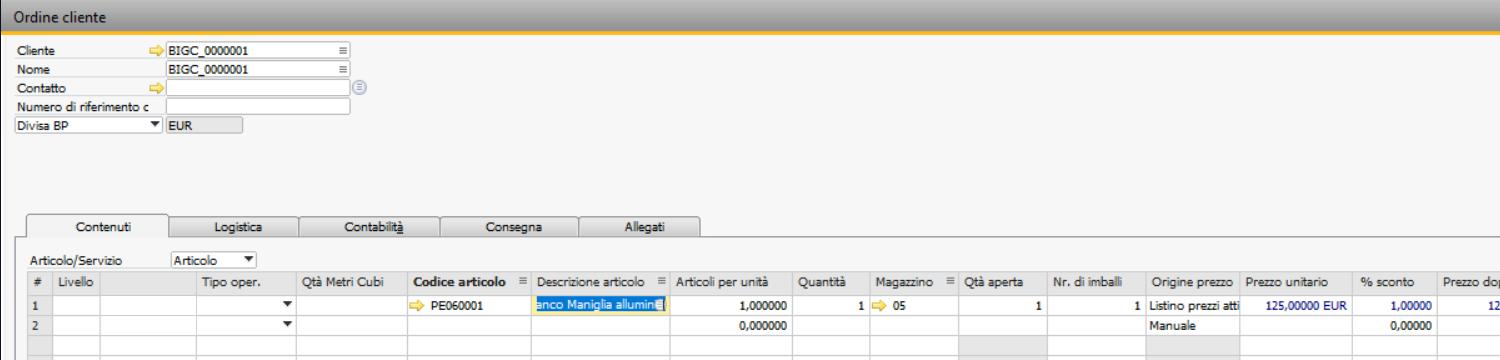
The item in the order row.
- If the row already has an item generated by the configurator, the generation starts from its configuration: changing one option is enough to get the right variant.
- If the generation window is already open, it moves to the new row; the list remains, so an item composed earlier can be reused.
- The document must stay open; a closed or non-editable document does not change (the reason appears at the bottom of the window).
11. Similar items
In the Item Master Data of an item created by the configurator, right-click › Generate Similar Items...: the generation window opens with the configuration of the item already set (its final value checked in the tree, already expanded down to it, and the chosen options) and with the item itself as template item. You change values and options and add the items to the list. If the generation window is already open (even minimized), it comes back to the front with the configuration of the item; the list remains.
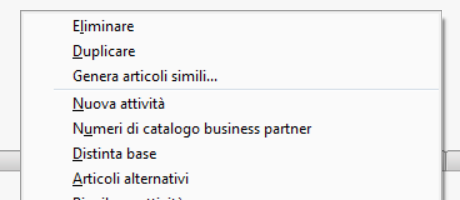
The right-click menu on a generated item.
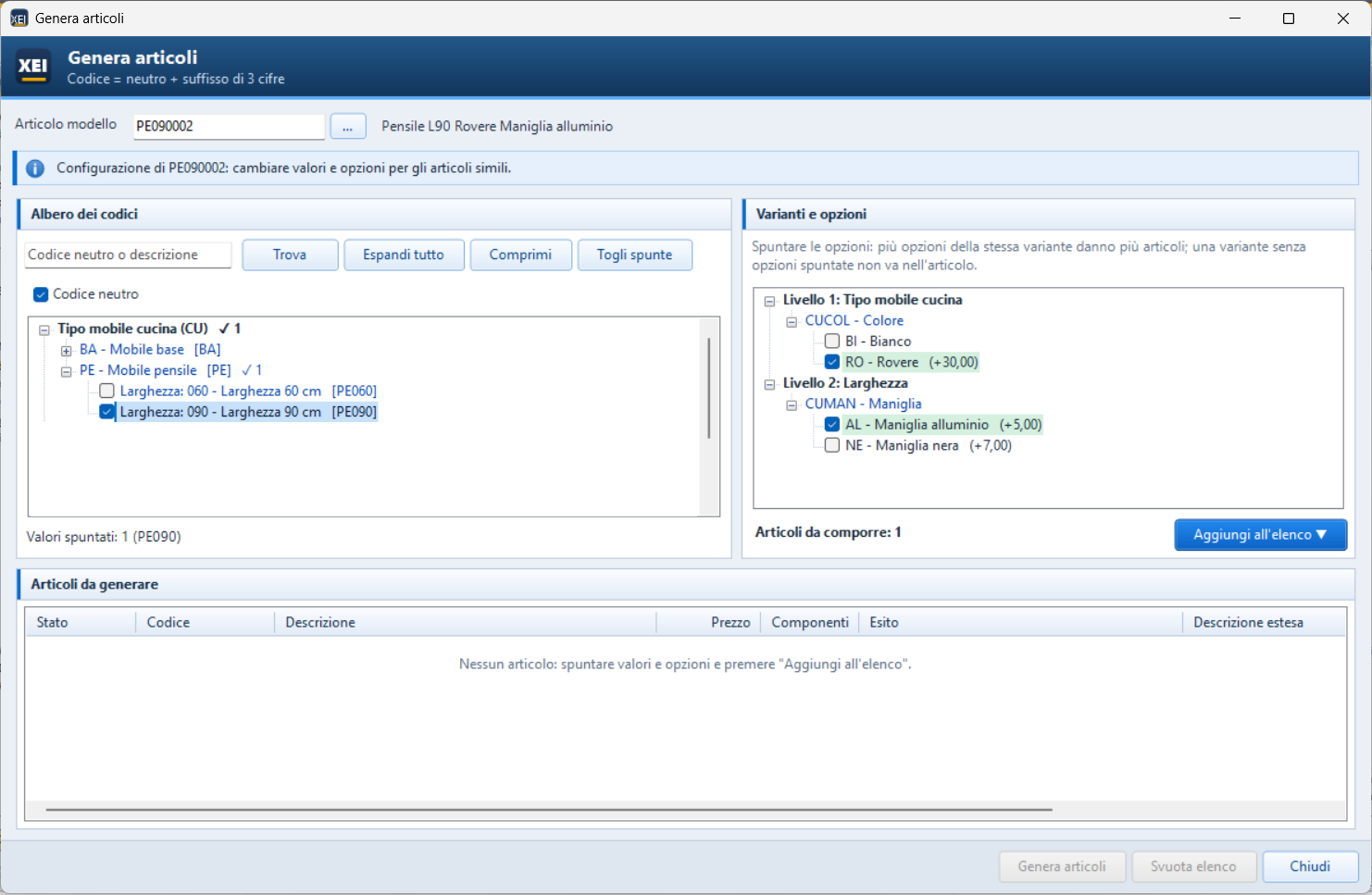
Generation from the configuration of PE090002 (SAP HANA theme): 90 cm wall unit, oak and aluminum handle already checked; the item itself as template item.
If the configuration has changed in the meantime (values removed or deactivated, different sub-levels), the generation starts from scratch, with a warning; options that no longer exist are ignored.
12. Configuration check
It checks the whole configuration (including inactive values and options) and shows the problems, errors first and then warnings. Double-click on a row opens the master data window to correct on that record; Check again repeats the check after the corrections. When you enlarge the window (also to full screen), the list of problems follows it.

Check: a variant structure that does not exist and a value that inherits with no variants to inherit.
| Type | Check |
|---|---|
| Error | base with no length; code with a length different from the base; repeated code |
| Error | sub-level, variant structure, item group, UoM group that do not exist; invalid properties |
| Error | variant that does not exist in a structure; repeated option |
| Error | component with no item, with an item or warehouse that does not exist, with zero quantity, for a value or option that does not exist |
| Error | base that is a sub-level of itself (loop, with the path); no first-level base |
| Warning | base with no active values; structure with no variants; variant with no active options |
| Warning | base that cannot be reached from the first level (sub-level only of inactive values) |
| Warning | path that gives codes longer than 50 characters, suffix included |
| Warning | value that inherits variants with no matching variants on the previous levels; Force inheritance without Inherit variants |
| Warning | formula with unknown placeholders or wrong square brackets |
13. Excel import and export
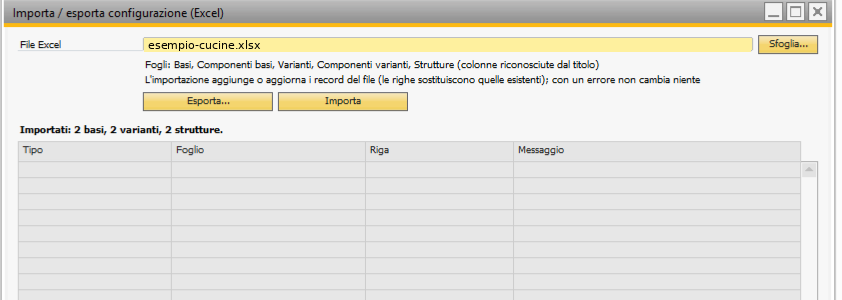
Successful import of the example file.
Export... asks where to save and writes the whole configuration to an .xlsx file, one sheet per master data type, with a bold, frozen header. Import reads the selected file (Browse...). When you enlarge the window, the file name and the result list widen.
| Sheet | One row per | Columns |
|---|---|---|
| Basi | value (the base data are repeated) | Base, Descrizione base, Lunghezza, Classificazione, Tabella utente, Campo utente, Codice, Descrizione, Desc. articolo, Desc. straniera, Sotto livello, Struttura varianti, Eredita varianti, Forza ereditarietà, Attivo, UM magazzino, UM acquisti, UM vendite, Valore, Dim. 1, Dim. 2, Dim. 3, Peso, Gruppo articoli, Gruppo UM, Proprietà, Note |
| Componenti basi | component | Base, Valore, Componente, Descrizione, Quantità, Magazzino, Note |
| Varianti | option | Variante, Descrizione variante, Tabella utente, Campo utente, Opzione, Descrizione, Desc. straniera, Alias, Valore, Peso, Proprietà, Note, Attivo |
| Componenti varianti | component | Variante, Opzione, Componente, Descrizione, Quantità, Magazzino, Note |
| Strutture | variant | Struttura, Descrizione struttura, Variante, Descrizione variante, Posizione, Pos. descrizione |
- Columns are recognized by their title: the order does not matter and unknown columns are ignored. The file can also contain only some of the sheets.
- Numbers in Italian format (
1.234,5) or English format (1234.5); yes/no with Y, S, Sì, X, 1, Vero. - Codes with leading zeros (
060) must be written as text (in Excel with an apostrophe:'060), otherwise Excel turns them into numbers. - The import first checks the whole file: if there is an error it writes nothing, and the list shows sheet, row and reason for each error.
- Then it writes everything together: each base, variant or structure in the file is added or updated and its rows replace the existing ones; components change only for the bases and variants present in the component sheets; whatever is not in the file stays as it is.
Typical uses: export, edit in Excel (new values, updated prices) and import again; copy the configuration to another company; start from an example such as esempio-cucine.xlsx.
14. Item Master Data, consistency check, other add-ons
Picture thumbnail
With the Thumbnail option, Item Master Data shows the item picture (Picture field, in the SAP pictures folder) in the free space of the header, to the left of the Inventory Item / Sales Item / Purchase Item check boxes. The frame takes the proportions of the picture and is hidden if the item has no picture. Item Master Data does not slow down.

The thumbnail in Item Master Data.
Consistency check
It recalculates the composition of all generated items. It is useful if the configuration data have been changed outside the add-on; it also removes the compositions of items deleted in SAP.
Integration with other add-ons
With a menu after creation in the settings, for each item created the add-on runs that menu after
recording the item code in the XEI table @XEI_IG_EVENTS: another add-on listening to that menu can
complete the item.